MCP tools normally return text. FastMCP apps return interactive UIs rendered directly in the conversation: charts, tables, forms, dashboards. The easiest way to build one is with Prefab UI, a Python component library designed for exactly this. You describe the UI in Python; Prefab compiles it to something the host can render. This tutorial builds a working app from scratch. Here’s what you’ll have in about a minute:
A team directory app with a pie chart and sortable data table, rendered inside a conversation in Goose

Setup

Install FastMCP with the apps extra, which pulls in Prefab UI:
pip install "fastmcp[apps]"

A Tool That Returns a UI

When your tool has something to show (a table of results, a chart, a status dashboard) you can return an interactive UI instead of text. Build the visualization with Prefab components, return it from your tool, and set app=True so FastMCP knows to render it. The user sees a live, interactive widget right in the conversation instead of a wall of JSON. Create server.py:
server.py
from collections import Counter

from prefab_ui.app import PrefabApp
from prefab_ui.components import Column, Grid, Heading, DataTable, DataTableColumn
from prefab_ui.components.charts import PieChart
from fastmcp import FastMCP

mcp = FastMCP("My First App")


@mcp.tool(app=True)
def team_directory() -> PrefabApp:
    """Browse the team directory."""
    members = [
        {"name": "Alice Chen", "role": "Staff Engineer", "office": "San Francisco"},
        {"name": "Bob Martinez", "role": "Lead Designer", "office": "New York"},
        {"name": "Carol Johnson", "role": "Senior Engineer", "office": "London"},
        {"name": "David Kim", "role": "Product Manager", "office": "San Francisco"},
        {"name": "Eva Mueller", "role": "Engineer", "office": "Berlin"},
        {"name": "Frank Lee", "role": "Data Scientist", "office": "San Francisco"},
        {"name": "Grace Park", "role": "Engineering Manager", "office": "New York"},
    ]

    office_counts = [
        {"office": office, "count": count}
        for office, count in Counter(m["office"] for m in members).items()
    ]

    with PrefabApp() as app:
        with Column(gap=4, css_class="p-6"):
            Heading("Team Directory")
            with Grid(columns=[1, 2], gap=4):
                PieChart(
                    data=office_counts,
                    data_key="count",
                    name_key="office",
                    show_legend=True,
                )
                DataTable(
                    columns=[
                        DataTableColumn(key="name", header="Name", sortable=True),
                        DataTableColumn(key="role", header="Role", sortable=True),
                        DataTableColumn(key="office", header="Office", sortable=True),
                    ],
                    rows=members,
                    search=True,
                )

    return app
That app=True is doing a lot behind the scenes. It tells FastMCP to set up everything the MCP Apps protocol requires: the renderer resource, the content security policy, the metadata that tells the host “this tool returns a UI.” Without it, you’d wire all of that up by hand. With it, you just return Prefab components and FastMCP handles the rest. The host (Claude Desktop, Goose, etc.) loads the result in a sandboxed iframe where the user can sort columns, search, and interact, all client-side with no round-trips to your server. The Prefab code itself reads top-to-bottom like a document. PrefabApp() is the root container and everything inside its with block becomes the app’s UI. Column arranges children vertically. Heading renders a title. DataTable takes rows of data and column definitions, and gives you sorting and search for free. The with blocks establish parent-child relationships: nesting components inside each other builds the layout tree.

Running It

FastMCP includes a dev server that renders your app tools in a browser, no MCP host needed:
fastmcp dev apps server.py
This opens http://localhost:8080 where you can pick a tool and see the rendered UI. Try sorting the table columns and typing in the search box.

Making It Interactive

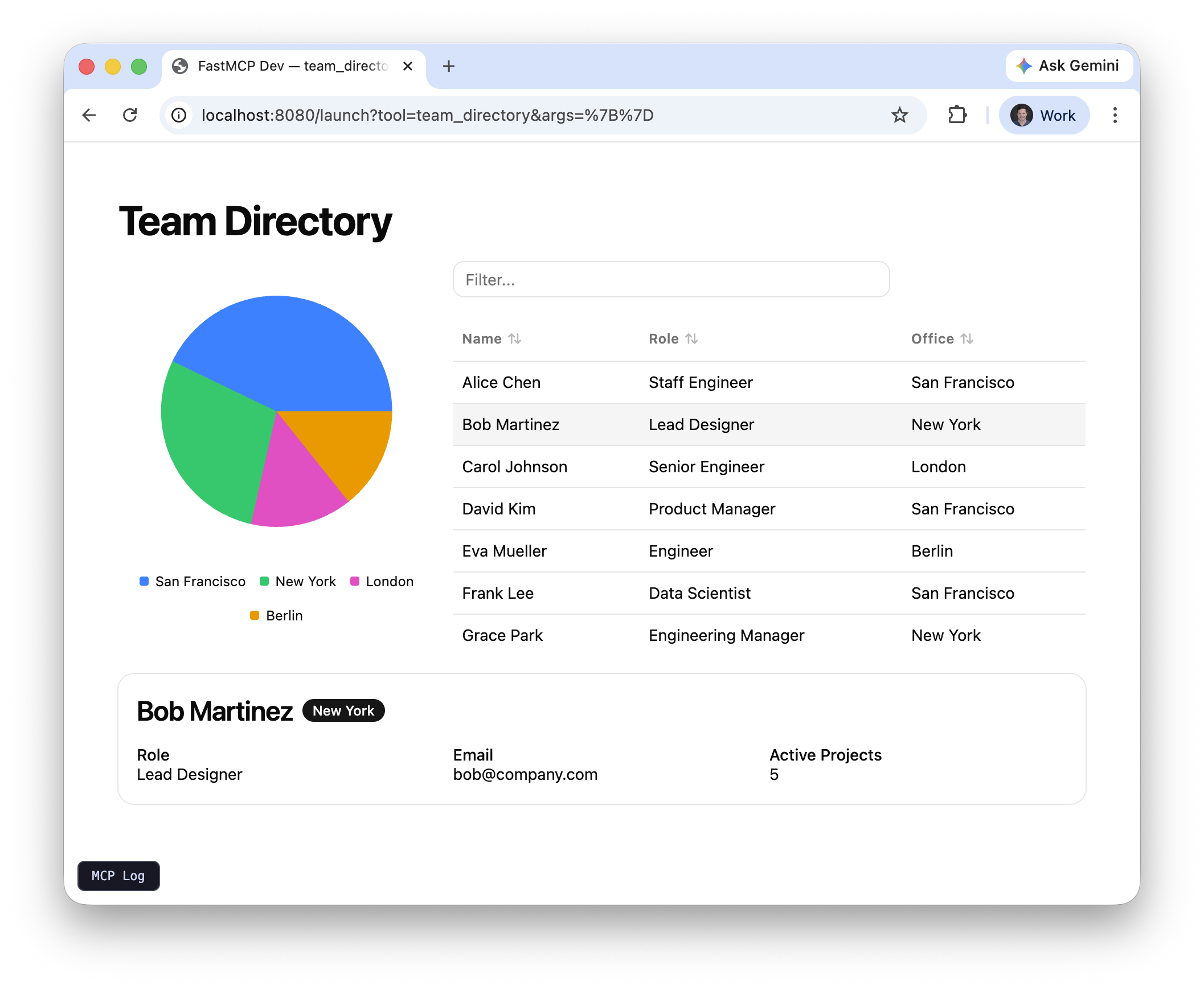
The table above is a static snapshot that renders once from the data your Python code provides. But Prefab apps can also respond to user interaction in real time, without any server round-trips. The key concept is state: a client-side key-value store that components read from and write to. When the user interacts with a component, it updates state. Other components that reference that state re-render instantly. See the Prefab state docs for the full guide. Here’s the same directory, but now clicking a row shows that person’s details in a card:
The team directory with a detail card showing after clicking Bob Martinez
server.py
from collections import Counter

from prefab_ui.actions import SetState
from prefab_ui.app import PrefabApp
from prefab_ui.components import (
    Card, CardContent, CardHeader, Column, Grid, H3, Heading, Muted,
    Row, DataTable, DataTableColumn, Badge, Small, Text,
)
from prefab_ui.components.charts import PieChart
from prefab_ui.components.control_flow import If
from prefab_ui.rx import Rx, STATE
from fastmcp import FastMCP

mcp = FastMCP("My First App")

MEMBERS = [
    {"name": "Alice Chen", "role": "Staff Engineer", "office": "San Francisco", "email": "alice@company.com", "projects": 3},
    {"name": "Bob Martinez", "role": "Lead Designer", "office": "New York", "email": "bob@company.com", "projects": 5},
    {"name": "Carol Johnson", "role": "Senior Engineer", "office": "London", "email": "carol@company.com", "projects": 2},
    {"name": "David Kim", "role": "Product Manager", "office": "San Francisco", "email": "david@company.com", "projects": 7},
    {"name": "Eva Mueller", "role": "Engineer", "office": "Berlin", "email": "eva@company.com", "projects": 1},
    {"name": "Frank Lee", "role": "Data Scientist", "office": "San Francisco", "email": "frank@company.com", "projects": 4},
    {"name": "Grace Park", "role": "Engineering Manager", "office": "New York", "email": "grace@company.com", "projects": 6},
]

OFFICE_COUNTS = [
    {"office": office, "count": count}
    for office, count in Counter(m["office"] for m in MEMBERS).items()
]


@mcp.tool(app=True)
def team_directory() -> PrefabApp:
    """Browse the team directory."""
    with PrefabApp(state={"selected": None}) as app:
        with Column(gap=4, css_class="p-6"):
            Heading("Team Directory")
            with Grid(columns=[1, 2], gap=4):
                PieChart(
                    data=OFFICE_COUNTS,
                    data_key="count",
                    name_key="office",
                    show_legend=True,
                )
                DataTable(
                    columns=[
                        DataTableColumn(key="name", header="Name", sortable=True),
                        DataTableColumn(key="role", header="Role", sortable=True),
                        DataTableColumn(key="office", header="Office", sortable=True),
                    ],
                    rows=MEMBERS,
                    search=True,
                    on_row_click=SetState("selected", Rx("$event")),
                )

            with If(STATE.selected):
                with Card():
                    with CardHeader():
                        with Row(gap=2, align="center"):
                            H3(Rx("selected.name"))
                            Badge(Rx("selected.office"))
                    with CardContent():
                        with Grid(columns=3, gap=4):
                            with Column(gap=0):
                                Small("Role")
                                Text(Rx("selected.role"))
                            with Column(gap=0):
                                Small("Email")
                                Text(Rx("selected.email"))
                            with Column(gap=0):
                                Small("Active Projects")
                                Text(Rx("selected.projects"))

    return app
Three new ideas here: SetState + on_row_click is the interaction. When the user clicks a table row, SetState("selected", Rx("$event")) writes the clicked row’s data into the selected state key. $event is a special variable that contains the event payload (in this case, the row dict). Rx("selected.name") reads from state reactively. It doesn’t hold a Python value. It compiles to a browser-side expression that re-evaluates live whenever selected changes. So Text(Rx("selected.name")) always shows the name of whoever was last clicked. If(STATE.selected) conditionally renders the detail card only when something has been selected. Before any click, selected is None and the card is hidden. The state dict on PrefabApp sets initial values when the app loads. Run fastmcp dev apps server.py again and try clicking a row.

Next Steps

You’ve built a tool that returns an interactive, reactive UI. This pattern covers a huge range of use cases: build a visualization in Prefab, return it from a tool, and the user gets dashboards, charts, data tables, and status displays right in the conversation. When you need the UI to talk back to your server (forms that save data, buttons that trigger actions, search that queries a database) you promote the tool to a FastMCPApp. That gives you managed backend tools, automatic visibility control, and stable routing so your UI’s button clicks reach the right server-side code.
  • Prefab UI covers the full component library: charts, forms, badges, progress bars, and the reactive state system in depth.
  • FastMCPApp is the next step when your UI needs to interact with backend logic.
  • App Providers are ready-made capabilities you can add with a single add_provider() call.