> ## Documentation Index
> Fetch the complete documentation index at: https://gofastmcp.com/llms.txt
> Use this file to discover all available pages before exploring further.
# Approval
> Human-in-the-loop approval gates for agent actions
export const VersionBadge = ({version}) => {
return
New in version {version}
;
};
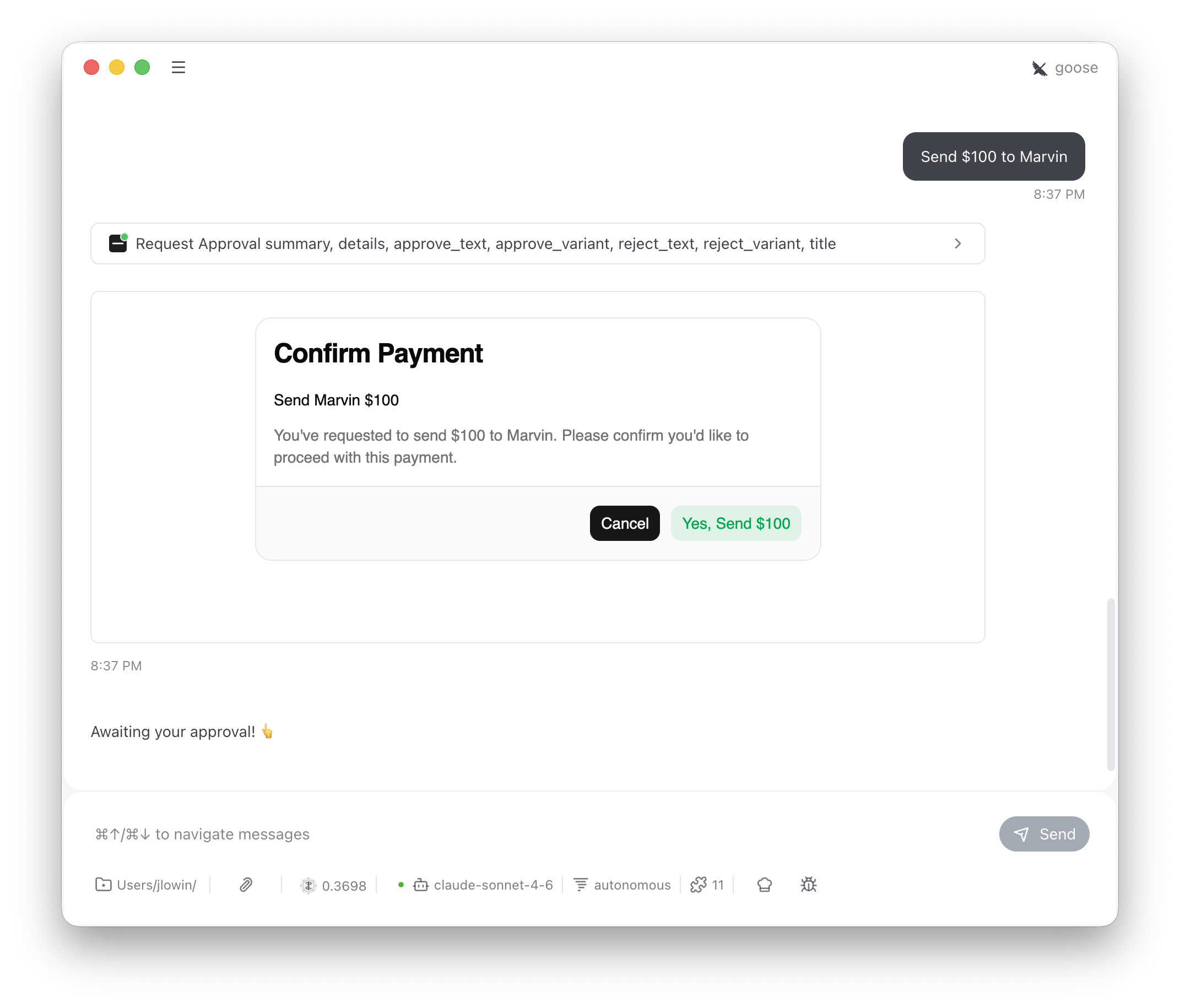
`Approval` adds a human-in-the-loop confirmation step to any server. The LLM presents what it's about to do, the user approves or rejects via buttons, and the decision flows back into the conversation as a message.
 ```python theme={"theme":{"light":"snazzy-light","dark":"dark-plus"}}
from fastmcp import FastMCP
from fastmcp.apps.approval import Approval
mcp = FastMCP("My Server")
mcp.add_provider(Approval())
```
This registers a single tool:
| Tool | Visibility | Purpose |
| ------------------ | ---------- | ------------------------------------------------------------------- |
| `request_approval` | Model | Shows an approval card, sends the user's decision back as a message |
The LLM calls `request_approval` with a summary (and optional details) whenever it's about to take a significant action. The user sees a card with Approve and Reject buttons. Clicking either sends a message back into the conversation via `SendMessage`, which triggers the LLM's next turn.
The message looks like it came from the user:
```
"Deploy v3.2 to production" — I selected: Approve
```
Approval is an advisory gate, not an enforcement mechanism. The conversation isn't blocked while the card is open — the user can keep typing, and a determined LLM could proceed without waiting. Think of it as a strong UX signal that encourages confirmation, not a security boundary. For hard enforcement, implement approval logic server-side in your tool implementations.
## Configuration
The constructor sets defaults; the LLM can override all of these per-call via tool arguments.
```python theme={"theme":{"light":"snazzy-light","dark":"dark-plus"}}
Approval(
name="Approval", # App name
title="Approval Required", # Card heading
approve_text="Approve", # Approve button label
reject_text="Reject", # Reject button label
approve_variant="default", # "default", "destructive", "success", "info"
reject_variant="outline", # same options plus "outline"
)
```
The LLM can customize each invocation:
```python theme={"theme":{"light":"snazzy-light","dark":"dark-plus"}}
request_approval(
summary="Delete 47 files from /tmp",
details="This cannot be undone.",
title="Destructive Action",
approve_text="Delete",
approve_variant="destructive",
reject_text="Keep files",
)
```
## How it works
When the user clicks a button, two things happen:
1. `SendMessage` pushes the decision into the conversation as a user message
2. `SetState("decided", True)` replaces the buttons with "Response sent."
The tool description instructs the LLM to stop and wait for the "I selected:" message before proceeding. If approved, it continues. If rejected, it acknowledges and asks how to proceed.
```python theme={"theme":{"light":"snazzy-light","dark":"dark-plus"}}
from fastmcp import FastMCP
from fastmcp.apps.approval import Approval
mcp = FastMCP("My Server")
mcp.add_provider(Approval())
```
This registers a single tool:
| Tool | Visibility | Purpose |
| ------------------ | ---------- | ------------------------------------------------------------------- |
| `request_approval` | Model | Shows an approval card, sends the user's decision back as a message |
The LLM calls `request_approval` with a summary (and optional details) whenever it's about to take a significant action. The user sees a card with Approve and Reject buttons. Clicking either sends a message back into the conversation via `SendMessage`, which triggers the LLM's next turn.
The message looks like it came from the user:
```
"Deploy v3.2 to production" — I selected: Approve
```
Approval is an advisory gate, not an enforcement mechanism. The conversation isn't blocked while the card is open — the user can keep typing, and a determined LLM could proceed without waiting. Think of it as a strong UX signal that encourages confirmation, not a security boundary. For hard enforcement, implement approval logic server-side in your tool implementations.
## Configuration
The constructor sets defaults; the LLM can override all of these per-call via tool arguments.
```python theme={"theme":{"light":"snazzy-light","dark":"dark-plus"}}
Approval(
name="Approval", # App name
title="Approval Required", # Card heading
approve_text="Approve", # Approve button label
reject_text="Reject", # Reject button label
approve_variant="default", # "default", "destructive", "success", "info"
reject_variant="outline", # same options plus "outline"
)
```
The LLM can customize each invocation:
```python theme={"theme":{"light":"snazzy-light","dark":"dark-plus"}}
request_approval(
summary="Delete 47 files from /tmp",
details="This cannot be undone.",
title="Destructive Action",
approve_text="Delete",
approve_variant="destructive",
reject_text="Keep files",
)
```
## How it works
When the user clicks a button, two things happen:
1. `SendMessage` pushes the decision into the conversation as a user message
2. `SetState("decided", True)` replaces the buttons with "Response sent."
The tool description instructs the LLM to stop and wait for the "I selected:" message before proceeding. If approved, it continues. If rejected, it acknowledges and asks how to proceed.