> ## Documentation Index
> Fetch the complete documentation index at: https://gofastmcp.com/llms.txt
> Use this file to discover all available pages before exploring further.
# Development
> Preview and test your app tools locally without a full MCP host.
export const VersionBadge = ({version}) => {
return
New in version {version}
;
};
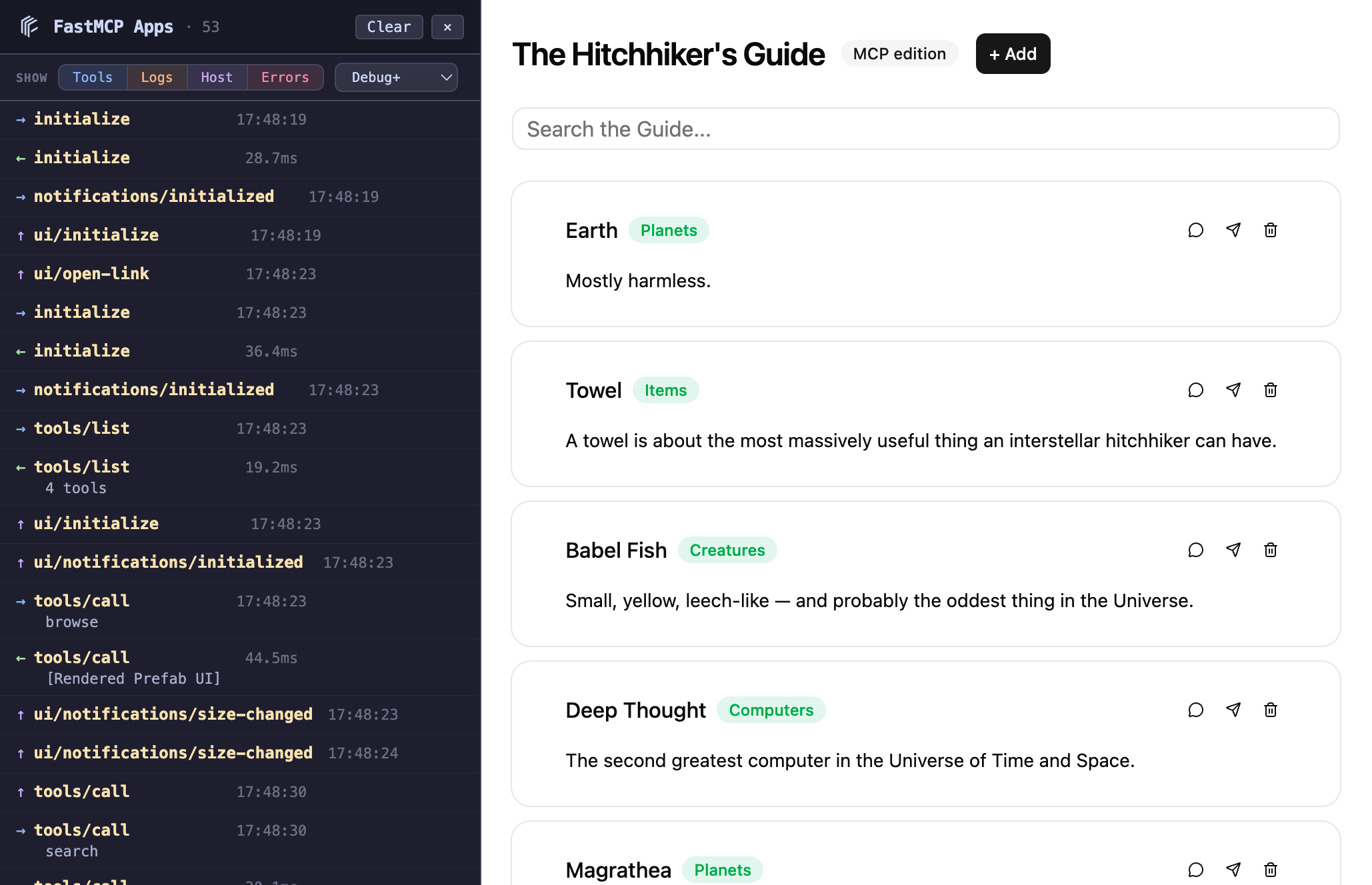 `fastmcp dev apps` gives you a browser preview for your app tools without needing an MCP host client. It starts your server and a local dev UI side by side: you pick a tool, fill in its arguments, and the rendered result opens in a new tab.
Works with both [Interactive Tools](/apps/prefab) and [custom HTML apps](/apps/low-level).
## Quick start
```bash theme={"theme":{"light":"snazzy-light","dark":"dark-plus"}}
fastmcp dev apps server.py
```
The dev UI opens at `http://localhost:8080`. Your MCP server runs on port 8000 with auto-reload enabled by default — save a file and the server restarts automatically.
## How it works
The dev server does three things:
The **picker page** connects to your MCP server, finds all tools with UI metadata, and renders a form for each one. The forms are auto-generated from the tool's input schema — text fields, dropdowns, checkboxes, all wired up.
When you submit a form, the dev server **calls your tool** via the MCP protocol and opens the result in a new tab. The result page loads the tool's UI resource (the Prefab renderer or your custom HTML) inside an AppBridge — the same protocol that real MCP hosts use.
A **reverse proxy** on `/mcp` forwards requests from the browser to your MCP server, avoiding CORS issues that would otherwise block the iframe-based renderer from talking to a different port.
## MCP inspector
The dev UI includes an inspector panel on the left side that captures MCP traffic in real time. It shows JSON-RPC messages flowing between the browser and your server — requests, responses, and AppBridge `postMessage` traffic.
Each entry shows direction, method, timing, and a smart summary. Click any entry to expand the full JSON-RPC body. The panel auto-scrolls to new messages unless you've scrolled up to inspect older ones.
The inspector is useful for debugging: you can see exactly what arguments your tool received, what it returned, and how the AppBridge communicated with the renderer.
## Options
```bash theme={"theme":{"light":"snazzy-light","dark":"dark-plus"}}
fastmcp dev apps server.py:mcp --mcp-port 9000 --dev-port 9090 --no-reload
```
| Option | Flag | Default | Description |
| ----------- | -------------------------- | ------- | --------------------------------------------- |
| MCP Port | `--mcp-port` | `8000` | Port for your MCP server |
| Dev Port | `--dev-port` | `8080` | Port for the dev UI |
| Auto-Reload | `--reload` / `--no-reload` | On | Watch files and restart the server on changes |
## Multiple tools
If your server has multiple app tools, the picker shows a dropdown. Each tool gets its own form and launch button. The tool's `title` is displayed when available, falling back to the tool name.
```bash theme={"theme":{"light":"snazzy-light","dark":"dark-plus"}}
# Server with multiple app tools
fastmcp dev apps examples/apps/contacts/contacts_server.py
```
`fastmcp dev apps` gives you a browser preview for your app tools without needing an MCP host client. It starts your server and a local dev UI side by side: you pick a tool, fill in its arguments, and the rendered result opens in a new tab.
Works with both [Interactive Tools](/apps/prefab) and [custom HTML apps](/apps/low-level).
## Quick start
```bash theme={"theme":{"light":"snazzy-light","dark":"dark-plus"}}
fastmcp dev apps server.py
```
The dev UI opens at `http://localhost:8080`. Your MCP server runs on port 8000 with auto-reload enabled by default — save a file and the server restarts automatically.
## How it works
The dev server does three things:
The **picker page** connects to your MCP server, finds all tools with UI metadata, and renders a form for each one. The forms are auto-generated from the tool's input schema — text fields, dropdowns, checkboxes, all wired up.
When you submit a form, the dev server **calls your tool** via the MCP protocol and opens the result in a new tab. The result page loads the tool's UI resource (the Prefab renderer or your custom HTML) inside an AppBridge — the same protocol that real MCP hosts use.
A **reverse proxy** on `/mcp` forwards requests from the browser to your MCP server, avoiding CORS issues that would otherwise block the iframe-based renderer from talking to a different port.
## MCP inspector
The dev UI includes an inspector panel on the left side that captures MCP traffic in real time. It shows JSON-RPC messages flowing between the browser and your server — requests, responses, and AppBridge `postMessage` traffic.
Each entry shows direction, method, timing, and a smart summary. Click any entry to expand the full JSON-RPC body. The panel auto-scrolls to new messages unless you've scrolled up to inspect older ones.
The inspector is useful for debugging: you can see exactly what arguments your tool received, what it returned, and how the AppBridge communicated with the renderer.
## Options
```bash theme={"theme":{"light":"snazzy-light","dark":"dark-plus"}}
fastmcp dev apps server.py:mcp --mcp-port 9000 --dev-port 9090 --no-reload
```
| Option | Flag | Default | Description |
| ----------- | -------------------------- | ------- | --------------------------------------------- |
| MCP Port | `--mcp-port` | `8000` | Port for your MCP server |
| Dev Port | `--dev-port` | `8080` | Port for the dev UI |
| Auto-Reload | `--reload` / `--no-reload` | On | Watch files and restart the server on changes |
## Multiple tools
If your server has multiple app tools, the picker shows a dropdown. Each tool gets its own form and launch button. The tool's `title` is displayed when available, falling back to the tool name.
```bash theme={"theme":{"light":"snazzy-light","dark":"dark-plus"}}
# Server with multiple app tools
fastmcp dev apps examples/apps/contacts/contacts_server.py
```